Obsidian MCP Server: Connect Your AI to Your Vault (Claude, ChatGPT, Cursor)
Most Obsidian MCP servers give you six tools: read a file, write a file, search, list, patch, delete. Basic CRUD over Markdown. That's table stakes.
This one does things the others can't. Your AI sees images in your vault — diagrams, whiteboard photos, screenshots — through actual vision, not file paths. It traverses your wikilink graph and finds orphaned notes nothing links to. It edits a specific section of a document by heading or block reference without overwriting the rest. It lists every open task across your entire vault. It runs Obsidian commands directly from the command palette.
It works with Claude Desktop, ChatGPT, Cursor, Windsurf, or any MCP client. No npm install, no local server, no JSON config. One remote URL and your AI has the tools.
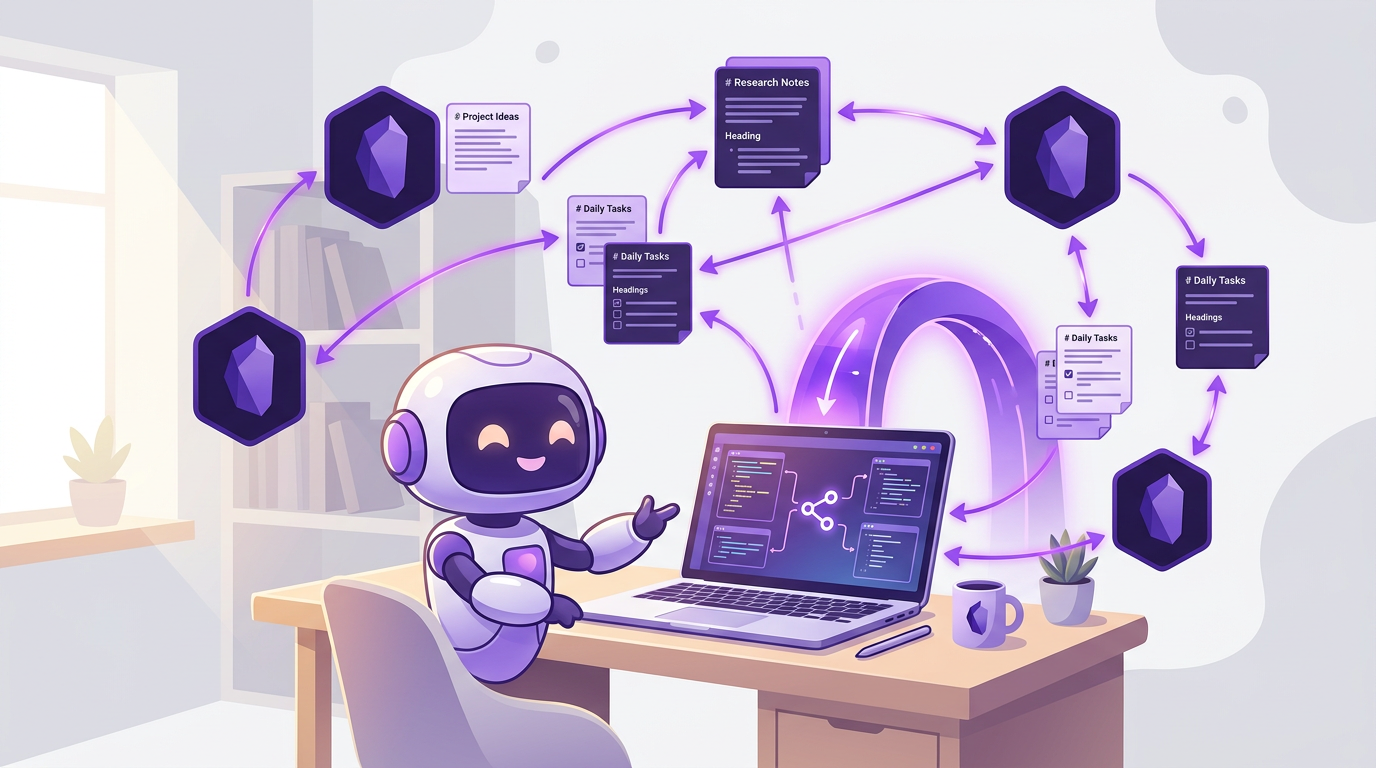
Set up in five minutes
Before the deep dive — here's how fast you can get this running.
1. Install the Obsidian plugin
Install the Local REST API community plugin in Obsidian. It's by Adam Coddington — search for it in Community Plugins, install, enable, and copy the API key from the plugin settings.
2. Start the proxy
Obsidian runs locally, so you need the desktop proxy to bridge the connection:
pip install mcpbundles
mcpbundles login
mcpbundles proxy start
3. Enable the bundle
Go to MCPBundles, enable the Obsidian bundle, and paste your API key. The tools are now available to every AI client connected to your MCPBundles server.
That's it. Everything below is what your AI can now do.
How this compares to other Obsidian MCP servers
There are several Obsidian MCP servers available. Most follow the same pattern: a local Node.js process that reads your vault directory and exposes CRUD operations over stdio. Here's how they differ.
| Feature | MCPBundles (this) | smith-and-web | cyanheads | MarkusPfworksidian |
|---|---|---|---|---|
| Setup | Remote URL, no install | npm/Docker + config JSON | npm + build step | npm + config JSON |
| Image vision (AI sees your images) | Yes | No | No | No |
| Graph analysis (neighbors, orphans, broken links) | Yes | Backlinks only | No | No |
| Section-level editing (by heading/block ref) | Yes | No | Partial | No |
| Task listing (vault-wide, filterable) | Yes | No | No | No |
| Command execution (Obsidian command palette) | Yes | No | No | No |
| Daily notes (auto-create, append) | Yes | No | No | No |
| Templates | Yes | No | No | No |
| Works with | Claude, ChatGPT, Cursor, Windsurf, any MCP client | Claude Desktop | Claude Desktop | Claude Desktop |
| Requires Node.js | No | Yes | Yes | Yes |
The local servers read files directly from your vault directory, which means they need filesystem access and a running Node.js process. The MCPBundles approach connects through Obsidian's Local REST API plugin and a proxy tunnel, which means:
- Your AI gets structured Obsidian data (headings, frontmatter, block refs) rather than raw file bytes
- Image content comes back as actual
ImageContentthat vision models can interpret, not file paths - The same connection works from any MCP client without per-client configuration
- No Node.js, no
npx, noclaude_desktop_config.jsonediting
The trade-off: you need the desktop proxy running (mcpbundles proxy start) since the connection goes through the cloud rather than reading files locally.
Using Obsidian with Claude
Claude — both Claude Desktop and Claude Code — has native MCP support, making it the most natural AI to connect to your Obsidian vault.
Claude Desktop: Add MCPBundles as your MCP server (one URL in settings), enable the Obsidian bundle, and start the proxy. Your vault is available in every conversation. Claude's vision capabilities mean it actually sees diagrams, screenshots, and whiteboard photos in your vault — it doesn't just get file paths.
Claude Code: Run mcpbundles init in your project directory. Claude Code discovers the Obsidian tools automatically. This is useful for developers who keep project notes, architecture decisions, and research in Obsidian — your AI coding agent can reference your notes while working on code.
The combination of Claude's long context window and Obsidian's structured knowledge makes for a powerful workflow: Claude can read multiple related notes, follow wikilinks between them, and synthesize information across your vault in a single conversation.
Surgical edits change everything
Most integrations that touch files do the same thing: read the whole file, modify it in memory, overwrite the whole file. Fine for code. Terrible for a living document with dozens of sections, tasks, and metadata fields that you don't want an AI to accidentally mangle.
The Obsidian PATCH operation works differently. Your AI targets a specific heading, block reference, or frontmatter field and inserts, replaces, or appends content just there.
Say you've got a project plan with milestones, discussion notes, and action items. You tell your AI to add two items to the milestones section. It reads the document map (a lightweight call that returns all headings, block refs, and frontmatter fields), finds the right heading, and appends only to that section. Your discussion notes and action items stay exactly as they were.
The same precision works for frontmatter. Your AI can flip status: draft to status: shipped on a single field without rewriting the YAML block. It can add a new reviewer: Tony field that didn't exist before. It can target nested heading paths like "Launch Plan::Key Milestones" to reach the right section in a deeply structured document.
This is the difference between an AI that can edit text files and an AI that understands Obsidian's document structure.
Daily notes are the fast path
The most common Obsidian workflow is appending to today's daily note. A quick thought, a task, a meeting summary — you open today's note and add a line.
Your AI does the same thing in one call. No need to figure out today's date, construct the filename, check if the file exists. Just "append this to my daily note." It handles the rest, including creating the note if it doesn't exist yet.
This turns your AI into a persistent journal. Every conversation can leave a trace in your vault. Meeting summaries go into the daily note. Research findings get filed in project notes. Action items land where they belong. Your AI doesn't just answer questions — it maintains your knowledge base while it works.
It controls Obsidian itself
This goes beyond file operations. Your AI can run any Obsidian command — the same commands you'd trigger from the command palette. Open the graph view. Insert a template. Export to PDF. Toggle a checklist item. If there's a command ID for it, your AI can execute it.
It can also open specific notes in the Obsidian UI, bringing them into focus so you can review what was just created or modified. This means your AI can write a note and then show it to you, rather than making you go find it.
Your AI can see your images
This is the one that changes the game for multimodal workflows. When your AI reads an image from your vault, it doesn't get a file path or a base64 blob dumped into a text response. It gets the actual image as an MCP ImageContent block — the same way a screenshot tool returns visual content.
That means any AI model with vision — Claude, GPT-4o, Gemini — actually sees the image. Your AI can describe a diagram, read handwritten notes from a photo, interpret a screenshot, or analyze a chart. All from files already sitting in your vault.
The practical use cases stack up fast. You have architecture diagrams in your vault — your AI reads the image and explains the data flow. You photographed a whiteboard after a brainstorming session — your AI transcribes the sticky notes into structured tasks. You have UI mockups saved as PNGs — your AI compares them against your spec document in the same vault.
PNG, JPEG, GIF, WebP, BMP, and SVG are all supported. The image flows through the same proxy tunnel as everything else — nothing gets stored on MCPBundles servers.
Graph analysis and vault maintenance
Obsidian's power comes from connections between notes. Wikilinks turn a folder of Markdown files into a knowledge graph. But maintaining that graph — finding orphans, fixing broken links, understanding relationships — is manual work. Until now.
Your AI traverses your link graph. Graph neighbors does a breadth-first search from any note, finding every connected note within a configurable depth. Direction matters: outgoing links, incoming backlinks, or both. Depth 1 shows direct connections. Depth 2 reveals the notes connected to those connections. This is Obsidian's graph view, but as structured data your AI can reason about.
Orphan detection scans every note in your vault and identifies the ones with zero incoming wikilinks — notes that nothing else links to. These are the ones you forgot about, the stubs you never connected, the ideas that fell through the cracks. Your AI finds them and can help you decide whether to connect, consolidate, or archive them.
Broken link detection does the inverse: it scans every wikilink in every note and checks whether the target actually exists. That reference to [[Old Project Name]] you renamed three months ago? Found.
Task management across your entire vault
Obsidian is great for tasks — the checkbox syntax (- [ ] do the thing) works in any note. But there's no built-in way to see tasks across your entire vault. Your AI can.
The task listing tool scans every note, extracts every checkbox, and returns them with their source file and line number. Filter by status (open, completed, all), by folder, by tag, or by keyword. Ask your AI "what are my open tasks tagged with Q2?" and get an answer without installing any plugins.
This is different from a Dataview query. It works without Dataview installed, it's available to your AI without you needing to write DQL syntax, and the results come back as structured data the AI can act on — not just display.
Templates at your fingertips
Your AI can list every template in your vault's template folder, preview their content, and use them as the basis for new notes. Ask it to create a new project note using your standard template and it reads the template, fills in the placeholders, and writes the result to your vault.
How the proxy tunnel works
Obsidian runs on your desktop. AI services run in the cloud. The MCPBundles desktop proxy bridges them with an encrypted tunnel.
AI → MCPBundles → Proxy Tunnel → Your Desktop → Obsidian (localhost:27124)
Your vault data flows through the tunnel in real time. Nothing gets stored on MCPBundles servers. The proxy handles Obsidian's self-signed TLS certificate automatically, so there's no certificate configuration to deal with. Start the proxy when you want access, stop it when you're done.
What this actually looks like in practice
You're prepping for a team meeting. Instead of opening Obsidian, creating a file, typing out a template, you tell your AI: "Create meeting notes for the Q2 planning sync with attendees Tony and Sarah, agenda: hiring, roadmap, budget." A fully structured note appears in your vault with frontmatter, sections, and wikilinks to related project notes.
After the meeting, you tell your AI to append the action items. It doesn't overwrite your agenda and discussion notes — it surgically appends to the action items section.
Later that evening, you ask your AI to search your vault for everything related to "database migration." It finds four notes across different projects, reads them, and creates a consolidated summary note linking back to the originals. Then it appends a line to your daily note: "Created migration summary — see Projects/db-migration-summary.md."
You photographed a whiteboard after a brainstorming session and dropped the image into your vault. You tell your AI to read it. It sees the photo — the actual image, not a file reference — reads the sticky notes, and creates structured tasks in a new project note with wikilinks back to the brainstorming session.
Your vault has grown to 500 notes. You ask your AI to run a health check. It finds 23 orphaned notes that nothing links to, 7 broken wikilinks pointing to renamed or deleted notes, and 45 open tasks scattered across 12 different project files. It creates a vault maintenance summary with links to every issue, sorted by priority.
You're working on a system architecture and have a diagram saved as a PNG in your vault. You ask your AI to read the diagram and compare it against your architecture notes. It sees the image, identifies the components, and points out that the notes describe a caching layer that isn't in the diagram.
None of this requires you to leave your AI chat. Whether you're in Claude Desktop, ChatGPT, Cursor, or a terminal — your vault stays organized because your AI knows how to work with it the same way you do.
Setup takes five minutes — start here.
FAQ
What is an Obsidian MCP server?
An MCP (Model Context Protocol) server for Obsidian gives AI assistants — Claude, ChatGPT, Cursor, and others — direct access to your vault. Instead of copy-pasting notes into a chat window, your AI reads, writes, searches, and edits notes through a structured protocol. MCP is an open standard created by Anthropic that any AI client can implement.
Do I need to install Node.js or npm?
Not with this approach. Most Obsidian MCP servers are local Node.js processes, but MCPBundles connects through Obsidian's Local REST API plugin and a proxy tunnel. You need the Obsidian plugin installed (available in Community Plugins), Python for the mcpbundles CLI, and that's it.
Does my vault data get stored on MCPBundles servers?
No. Your vault data flows through the proxy tunnel in real time and is not stored. The tunnel is encrypted end-to-end. When you stop the proxy, the connection closes and no data remains on any external server.
Can my AI see images in my vault?
Yes — this is one of the key differences from other Obsidian MCP servers. Images come back as MCP ImageContent blocks, which means vision-capable models (Claude, GPT-4o, Gemini) actually see the image. They can describe diagrams, read handwritten notes, interpret screenshots, and analyze charts. PNG, JPEG, GIF, WebP, BMP, and SVG are supported.
Does this work with ChatGPT?
Yes. Any AI client that supports MCP can connect. ChatGPT, Claude Desktop, Claude Code, Cursor, Windsurf, Cline, and others all work with the same MCPBundles server URL. You configure the connection once and every client gets access to the Obsidian tools.
Can my AI accidentally overwrite my notes?
The section-level editing feature specifically prevents this. Instead of replacing an entire file, your AI targets a specific heading, block reference, or frontmatter field and modifies only that section. The rest of the document stays untouched. For additional safety, you can enable read-only mode on the bundle, which blocks all write operations entirely.
How is this different from Obsidian Copilot or Smart Connections?
Obsidian Copilot and Smart Connections are Obsidian plugins that add AI features inside the Obsidian app. They work within Obsidian's UI — you ask questions in a sidebar panel and get answers about your notes.
An MCP server works in the opposite direction: it gives AI tools running outside Obsidian access to your vault. Your AI in Claude, ChatGPT, or Cursor can read and write to your vault as part of a broader workflow — not just answer questions about notes, but create new ones, update tasks, run health checks, and cross-reference with other services. The two approaches complement each other: plugins for in-app AI, MCP for external AI workflows.